Subscribe all latest updates via Facebook

Facebook Likebox using jQuery Lightbox v1.0 Extended by Tech Prevue

Showing posts with label Hacking. Show all posts

Sunday, September 8, 2013

Here’s How Google Glass Works [Infographic]

Leave a Comment
Since last year, Google Glass has taken the tech world abuzz as the next big innovation in mobile technology. These glasses, when worn, allow users to carry out tasks that are currently only possible on smartphones, all through an augmented reality layer placed on the user’s eyesight. If you have been wondering how this technology actually works under the hood, a German artist has put together an infographic that clearly illustrated the inner workings of this new futuristic device.
As illustrated by the infographic, Google Glass is comprised by some of the hardware that would usually make up a smartphone, including a microphone, camera, battery, speakers and the CPU, in addition to a mini projector. Images from the mini projectors, which are cleverly hidden next to each of the lenses, are bounced off the prism straight into the user’s retina. This allows the user to see the world around them naturally, where “layers” of information can be displayed on top of it. As one would expect, the position of this augmented reality layer can be changed by simply repositioning the glasses.


The designer also speculates on the main question that many have asked about this upcoming product: how can people who already wear glasses, and with low vision, can actually use the product? The proposed solution will involve changing the position of the prism, ensuring that it sits on top of the standard glasses, which as you might expect would bump up the price quite significantly as it involves creating a product which is, you know, custom in nature.
Google Glass, which began internal testing in April of last year, is currently in prototype stage and gaining interest from consumers and hardcore enthusiasts alike. In addition to some limited developer testing, Google recently launched the Glass Explorer program, which is aimed at allowing a limited selection of early adopters to give the new device a try.


We will be left to see whether these new augmented reality glasses will replace smartphones one day. But we strongly believe that Glass will probably end up as an accessory rather than a proper day-to-day device. Considering how Glass might cause issues when being worn in the workplace, it would be interesting to see how Glass would be used, or accepted in big organizations and firms.
(via: 9to5Google)
Read More...

Sunday, September 1, 2013

Want To Delete Yourself From The Internet? New Web App Helps You Do Just That!

Leave a Comment


We all spend so much time online these days that we’ve got accounts and online presences all over the place. Whether it be a Dropbox or iCloud account, a RunKeeper account or a place to call our own on Twitter or Facebook, the number of websites where we have a username and a password is quite a scary thought when you sit down and ponder it.
Every so often it’s a good idea to have a think about just which accounts you need and which you created just to check out that fancy new online service that you never actually took to. We’ve all done it, so we’re not going to judge you here.


The problem is, closing these accounts isn’t always the easiest thing to do. Some sites are notoriously difficult to get to delete your account. Amazon, for example, is one that likes to get its claws into you and never let go. Others are obviously more amenable to letting users remove themselves from a web service, but they are few and far between.
Now a new website created by UK developer Robb Lewis aims to take some of the guesswork out of closing accounts by detailing which services make it easy and which make it difficult. In fact, it will even tell you if it’s impossible to close an account at all.
The site goes one step further, too, by offering direct links to the pages that you’ll want to visit in order to kick the whole process off. Awesome!


JustDelete.me highlights the services that you might want to get your data removed from and offers a rating of anything from impossible to easy based on how many road blocks people need to navigate in order to close their account. The site is free to use, and is a good starting point for anyone trying to disappear from the internet.
Just don’t expect it to be an easy process, especially if you’re signed up to Amazon, Evernote or DHL.
Read More...

Sunday, August 11, 2013

How to Hack someones Whatsapp and read their chat messages

Leave a Comment

Let’s Get Started 


1. WhatsApp Sniffer

WhatsAppSniffer is a tool for root terminals to read WhatsApp conversations of a WIFI network (Open, WEP, WPA/WPA2). It captures the conversations, pictures / videos and coordinates that aresent or received by an Android phone, iPhone or Nokia on the same WIFI network. It has not been tested with W indows Phone terminals. It can’t read the messages written or received by the BlackBerry’s, as they use their own servers and not WhatsApp’s.
This application is designed to demonstrate that the security of WhatsApp’s communications is null. WhatsAppSniffer just use the TCPDump program which reads all the WIFI network packets and filters those which has origin or destination WhatsApp’s servers. All messages are in plain text, so it does not decrypt anything, complying fully with the legal terms of WhatsApp (3.C: “While we do not disallow the use of sniffers Such as Ethereal, tcpdump or HttpWatch in general, Any we do going efforts to disallow reverse-engineer our system, our protocols, or explore outside the boundaries of the ordinary requests made by clients WhatsApp …. “)
For WPA/WPA2 encrypted networks, if uses the tool ARPSpoof (optional).

 Requirements

  1. Rooted Android Device.
  2. Your Victim Should Use Same Wi-Fi Through Which you are connected.
  3. WhatsAppSniffer Donate ★ root v1.03.
This Trick is much similar to Hack your Friend’s Facebook Account

2. Decrypting Conversations

have your victim locked his whatsapp? or you want all his conversation on your PC. Generally for security reasons WhatsApp encrypt Conversation while taking backup in SD Card or Phone Memory.But i have found a tool on XDA that claims to decrypt all the whatsapp conversation down to your PC.
If you have some access over his device you can also send files from Bluetooth to your device and later read all the conversations.
This tool is called WhatsApp Xtract and for this all credits goes to ztedd
Some general advice on how to backup Whatsapp and get the database file:

Android

- In Whatsapp go to settings – more – Backup Chats
- Copy the folder “Whatsapp” on the SD card to your backup location (e.g., PC)
- (ideally also) use the app Titanium Backup to backup the full whatsapp application together with its data, copy the backup from the folder “TitaniumBackup” on the SD card to your backup location (e.g., PC)
- Use this tool Whatsapp Backup Extractor (download in this thread) to show the chats in a friendly readable format. The necessary files “wa.db” and “msgstore.db” you will find inside the Titanium Backup archive “com.whatsapp-[Date]-[some digits].tar.gz”, alternatively (without Titanium Backup) you can use the msgstore.db.crypt file from the folder Whatsapp/Databases on the SD card.

iPhone

- use Itunes to create an unencrypted Backup
- use an Iphone Backup Tool to get the file net.whatsapp.WhatsApp/Documents/ChatStorage.sqlite, e.g. I-Twin or Iphone Backup Extractor. Make sure to create an unencrypted backup with Itunes, as these tools can’t handle encrypted backups. Another possibility are forensic tools like UFED Physical Analyzer.)

Blackberry

- sync your blackberry with desktop manager and then copy the messagestore.db file from SD
- however, it seems that this file is encrypted? Currently we don’t know how to get the unencrypted messagestore.db file
- Blackberry not supported yet!

Nokia

 - not known yet
- Nokia not supported yet!
For Further Detail about this Method you can move to this Forum of XDA.

3. Using Spywares

Using 3rd Party Spywares can be very useful for spying not only WhatsApp Conversation but also many things like, you can able to Track GPS Location, you can capture the lock screen passwords and they can be also used for monitoring Websites. there are many spywares in the market but i recommend is BOSSPY. Because it’s free:)

Some Misconceptions about WhatsApp hacking

after writing ”4 WhatsApp Tricks and Hacks [Android]” I have received a number of E-Mail Most of them were asking for help for hacking their partner’s WhatsApp and I have replied them all. but lots of people were having misconceptions about whatsapp hacking so let me discuss over here.
  1. Hacking WhatsApp is Much Harder than Hacking Facebook and Twitter as Facebook and Twitter can be Hacked using Social Engeenering Techniques like Phising and many others when we compare to hack someones WhatsApp Account and Gain Full Access over his Account – It is nearly Impossible.
  2. There is no tool that can hack whatsapp and give you a full access over someone’s whatsapp account. Yes, there are Lot’s of Youtube Video’s ,Websites Filled with “WhatsApp Hack Tool” which claim that they can but the reality is they can’t.


* This article is for educational purposes only. we are not responsible for actions of any individual
Read More...

Monday, July 29, 2013

Anti Porn 19.1.7.15

Leave a Comment


Anti-Porn
 – A powerful program for blocking viewing undesirable sites. Uninstall or disable can only know the password. The program has proved suitable for the leaders and fathers of families, because it is – the best solution for increasing productivity of staff, and parents will not worry that their child spends on the Internet while watching.Anti-Porn parental control software can supply the globe standard time, you can set the program to let your kids use internet at certain times on specific days. Anti-Porn keeps a complete log of.

Key features:
- Blocking porn sites
- Anti-Porn block porn sites and thousands of words. You also mogzhete determine in advance the accuracy of filtering
- Restricting the Internet – chat rooms
- Anti-Porn can limit access to popular chat rooms and webcams.
- Limit internet access by time
- Full computer history log
- Record traffic data for the survey of Internet use
- You can make an inventory of computers for children, and find all the photos, movies, music files and web pages.

Read More...

Tuesday, July 23, 2013

Viber Messaging App Hacked By Syrian Electronic Army

Leave a Comment
Viber, a popular messaging app available for iOS, Android and almost all popular operating systems, has been hacked by the Syrian Electronic Army. This is the same group who, a few days ago, manage to peek into the database of Tango messaging app.
viber-hacked
The group, however, could manage to hack only the support page and defaced it. They also left a message on support.viber.com acknowledging that they were not able to hack all viber systems. They also blamed Viber to be a service for spying and tracking. However, they got no evidence to prove their claim as the screenshots posted only contain device information that would be necessary for messaging app to retain.
It’s still unclear if any of the user information has been compromised. The support.viber.com now shows 404 error and is presumably working to adress the hack.
Update: Viber has responded to 9to5mac‘s request for comment:
Today the Viber Support site was defaced after a Viber employee unfortunately fell victim to an email phishing attack. The phishing attack allowed access to two minor systems: a customer support panel and a support administration system. Information from one of these systems was posted on the defaced page.
It is very important to emphasize that no sensitive user data was exposed and that Viber’s databases were not “hacked”. Sensitive, private user information is kept in a secure system that cannot be accessed through this type of attack and is not part of our support system.
We take this incident very seriously and we are working right now to return the support site to full service for our users. Additionally, we want to assure all of our users that we are reviewing all of our policies to make sure that no such incident is repeated in the future.
For more: [iclarified]
viber support hacked 1
viber support hacked 2
viber support hacked 3
Read More...

Monday, July 22, 2013

How To Install OS X Mountain Lion Hackintosh On A PC [Tutorial]

Leave a Comment
Now that Apple have released OS X 10.8 Mountain Lion to the world, there are a lot of happy campers out there who are enjoying the latest and most advanced operating system from the Cupertino based company. The download and installation of Mountain Lion for Mac users couldn’t be any simpler with it being available as a digital download via the Mac App Store and it being installed with just a matter of a few clicks over the top of an existing 10.7 or 10.6.8 installation.
But what about those users who want to enjoy the benefits that this latest operating system brings and run the latest OS X on a Windows based PC? Once upon a time this process, known as a Hackintosh, was quite a lengthy process that threw up a few hurdles along the way. Those days are a thing of the past thanks to the UniBeast method of creating a bootable USB drive and thanks to a recent update this is now possible using OS X Mountain Lion. Read on for the step by step guide.


OS-X-Mountain-Lion-USB


Requirements:
  • Access to a Mac to download OS X Mountain Lion from App Store and prepare UniBeast USB Drive.
  • A minimum of 8GB or larger USB flash drive.
  • A PC capable of running OS X Mountain Lion.
Step 1: First and foremost, this process requires that you own a copy of Mac OS X Mountain Lion (10.8) and a USB drive with a minimum capacity of 8GB. The operating system is available to download from the Mac App Store for $19.99. If you haven’t already, download OS X Mountain Lion using your registered Apple ID.
Step 2: Download the updated and current version of UniBeast that is available from thedownloads section of the tonymacx86 website (free of charge registration required).
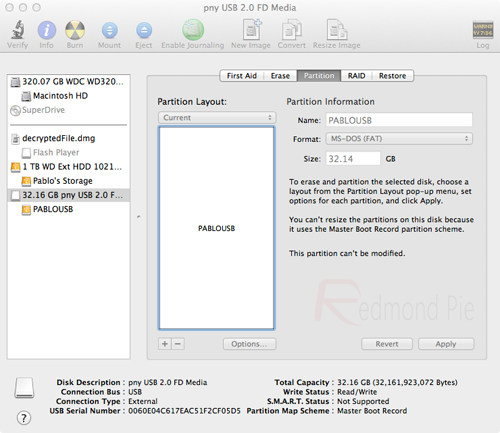
Step 3: After the relevant software has been downloaded, the initial step is to create a bootable USB drive containing OS X Mountain Lion. With the formatted USB plugged into an available USB port on your Mac, open up an instance of Finder and navigate to/Applications/Utilities/Disk Utility and highlight the relevant USB drive in the left hand column of the interface.


UniStep3


Step 4: Select the Current drop down menu and choose the 1 Partition option.
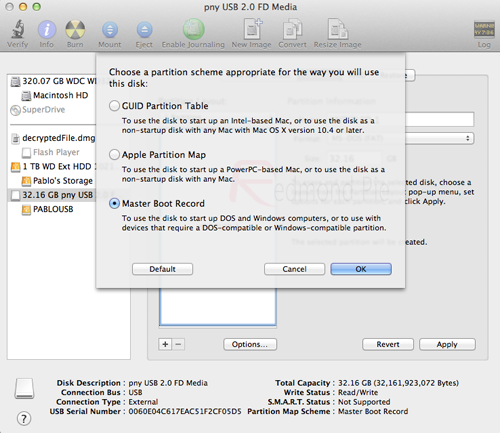
Step 5: Select Options underneath Partition Layout menu and make sure the Master Boot Recordoption is checked. Click Ok.


UniStep5


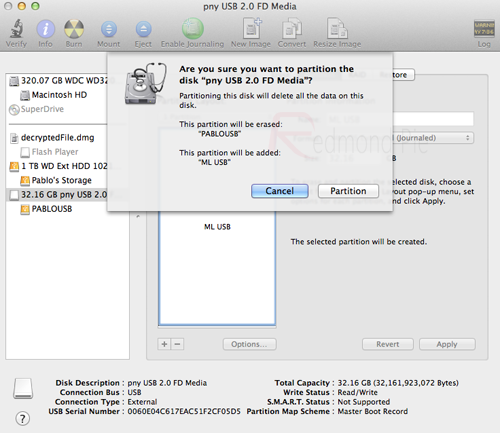
Step 6: On the right hand side of the Disk Utility window there are options to name the USB Drive. You can choose a name now or it can be done later. Under the Format header, make sure Mac OS Extended (Journaled) is selected. Select Apply before selecting Partition.


UniStep6


Step 7: Run the UniBeast 1.5.1 application that was downloaded in step 2. If UniBeast is giving you an error message relating to Mountain Lion being missing, make sure the installation file downloaded from the Mac App Store is located in the /Applications folder.
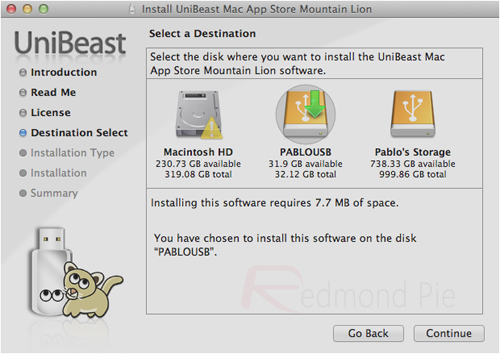
Step 8: When UniBeast is running, skip through the first few screens before selecting the relevant USB drive on the Select a Destination screen. Choose Continue, then enter your system password for approval. UniBeast will then look for the Mountain Lion installer file in the/Applications folder and install it to the USB drive.


UniStep8


Once the process has ran its course and completed, the partitioned USB drive will have a functional version of OS X Mountain Lion on it that can then be used on a PC to create an installation of Mountain Lion. The next few steps can be followed through to ensure everything is working without issue.
Step 9: Insert the USB drive into the PC that you want to turn into a Hackintosh and make sure that the machine is set to boot from USB through the BIOS.
Note: Steps 10 – 12 are only required for new installations. If you are updating from an existing installation of Mac OS X Snow Leopard or OS X Lion these steps can be skipped.
Step 10: After booting from the drive, you should now be in the OS X installer. Set the desired language, choose the Utilities option from the menu bar before selecting Disk Utility. Select the target hard drive for the installation of Mountain Lion on your PC and click the Partition tab.
Step 11: Once again, select the Current drop down, select 1 Partition before selecting Optionsand choosing GUID Partition Table.
Step 12: Type in Macintosh HD as the name of the partition and once again set the Format toMac OS Extended (Journaled).
Step 13: Click Apply then Partition before closing down the Disk Utility.
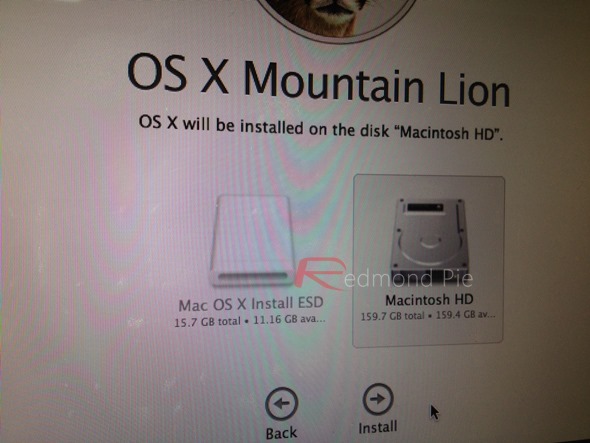
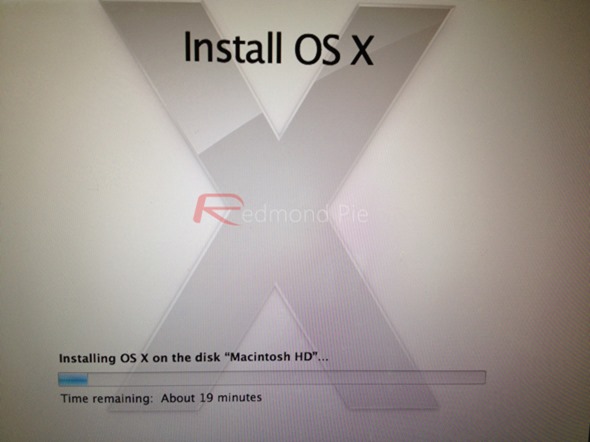
Step 14: Now simply install Mountain Lion on this hard drive.


photo 2
photo 4


When the process is completed, restart the machine. When the machine boots up, choose the new Mountain Lion option to make the drive bootable.


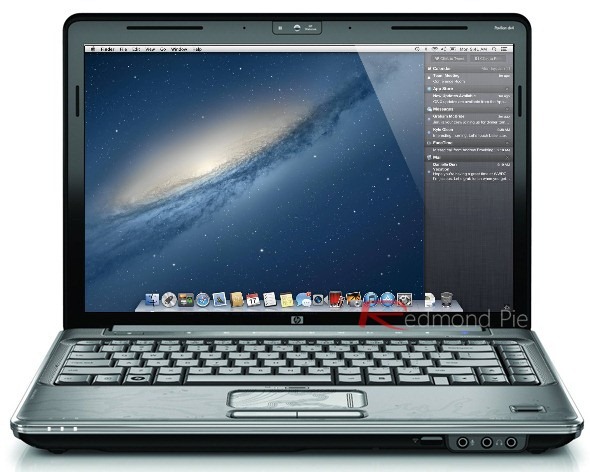
OS-X-MLion-PC
So there we have it, a fully functional Hackintosh PC running the latest Mac operating system. Last but not the least, you will need to install the drivers for your machine. This can be done using MultiBeast tool, which can again be found in the downloads section over at tonymacx86.
Apple will obviously tell you that the Mac machines they produce are designed to work harmoniously with the software and operating systems that they also develop, but running OS X on a Windows based PC can be an extremely pleasurable experience now that the installation process is relatively pain free.
Read More...

Wednesday, July 17, 2013

MAYASHOP V2.0.0 – A FLEXIBLE RESPONSIVE E-COMMERCE THEME FOR WORDPRESS

Leave a Comment


MayaShop v2.0.0 – A Flexible Responsive e Commerce Theme for WordPress MayaShop v2.0.0 – A Flexible Responsive e Commerce Theme for WordPress
MayaShop is a fresh WordPress theme that utilises the powerful JigoShop and Woo Commerce plugins to create a versatile WordPress powered shop, with unlimited layout options and unlimited skins. Make this theme your own.
Demo:
http://themeforest.net/item/mayashop-a-flexible-responsive-ecommerce-theme/2189918
Download:
Read More...

Facebook Critical Vulnerability Allowing Hacker to Gain Access to Any Facebook Account within a Minute

Leave a Comment

Facebook Critical Vulnerability Allowing Hacker to Gain Access to Any Facebook Account within a Minute


Dan Melamed, a security expert and analyst discovered his first vulnerability infacebook platform that allows an attacker to gain access to any user account and reset password with in a minute.
The vulnerability has been considered as critical as it can lead an attacker to hack any user account and access potential information related to user.
All the hacker has to do that when a user or victim  is logged into his account he has to send him a website link, after the link has been loaded, the attacker will be able to reset victim’s password.
This security flaw exists in the “Claim Email Address” component of facebook.


Facebook Hack Proof of Concept
Facebook Hack Proof of Concept
The Proof of Concept has been provided on Dan Melamed Official Security blog.
When a user tries to add an email address that already exists in the Facebooksystem, they have the option to “claim it”. When claiming an email address,Facebook did not check who the request came from. This allows an email to be claimed on any Facebook account.
In order to exploit this, you need 2 Facebook accounts.
1. An account with the email address (that you want to claim) already added to it.
2. Another account to initiate the claim process.

For example:

When making a claim request for a @hotmail.com email, you are taken to a link that looks like this:
https://www.facebook.com/support/openid/proxy_hotmail.php?appdata[fbid]=AQ3Tcly2XEfbzuCqyhZXfb8_hYHTnHPPd-CDsvdrLzDnWLpsKTMcaXtIzV0qywEwbPs

I found out that this parameter appdata[fbid] was the encrypted email address. For this demonstration, the encrypted email was “funnyluv196@hotmail.com”. The link will redirect you to the sign in page for Hotmail. You must sign in with the email address that matches the encrypted parameter. Once signed in, you are taken  to a final link that looks like this:
https://www.facebook.com/support/openid/accept_hotmail.php?appdata=%7B%22fbid%22%3A%22AQ3Tcly2XEfbzuCqyhZXfb8_hYHTnHPPd-CDsvdrLzDnWLpsKTMcaXtIzV0qywEwbPs%22%7D&code=a6893043-cf19-942b-c686-1aadb8b21026

Viewing the source code will show that the claim email process has succeeded:
<script type=”text/javascript”>window.opener.location.href = “\/claim_email\/add_email\/check_code?email=funnyluv196\u002540hotmail.com&openid=1″; window.close();</script>
There were two important aspects which made this exploit simple.
- The link expires in around 3 hours, giving plenty of time for a hacker’s use.
- It can be visited on any Facebook account because there is no check to see who made this request.

All a hacker has to do is insert this link on a webpage as either an image or an iframe. Example:
<img src=”https://www.facebook.com/support/openid/accept_hotmail.php?appdata=%7B%22fbid%22%3A%22AQ3Tcly2XEfbzuCqyhZXfb8_hYHTnHPPd-CDsvdrLzDnWLpsKTMcaXtIzV0qywEwbPs%22%7D&code=a6893043-cf19-942b-c686-1aadb8b21026″ width=”0″ height=”0″/>
The victim is now sent a link
http://evilsite.com/evilpage.html
Once clicked, the email (in this case: funnyluv196@hotmail.com) is instantly added to their Facebook account. The victim does not receive any notification whatsoever that this email has been added.
The hacker can then reset the victim’s password using the newly added email address. Thus allowing the attacker to take complete control over the Facebook account.
This vulnerability has been confirmed to be patched by the Facebook Security Team.
Read More...

Monday, July 15, 2013

Password Vulnerability in All Browser

Leave a Comment

Password Vulnerability in All Browser
Step 1 - Open any browser and open any website like facebook.com
Step 2 - Give your credentials (Username and Password)
Step 3 - Now right click on password pane where you input your password than choose last option > Inspect Element.
Step 4 - Now you got the Element console and automatically one line is selected, where you can see 
<input type="password" class="inputtext" and so on.
Step 5 - You just simply click on "password" and rename or replace it with word "text" (without quotes) and press Enter key.
Step 6 - Now you got the password , keep enjoying....


Read More...

Symbols Shortcut for Windows and Mac OSX

Leave a Comment

Tip sheet on special characters

This page will show users (of the Windows or Macintosh OS X operating systems), having a western european “standard” keyboard (showing the latin alphabet), how to generate other characters they might not see on the keyboard. For example a US keyboard will not show accented letters as used in French. A French keyboard will show accented letters common in French, but not accented letters used in Spanish. And so on… You can read the instructions below, or skip directly to the chart.

Special characters on Macintosh (Apple keyboards)


On MacOS, the option key functions as a modifier key like the shift key. Hold it down and press another key simultaneously. For shift+option, hold down both the shift and option keys and press the additional letter key simultaneously.

Special characters on Windows (PC keyboards)


On Windows, the Alt key functions as a modifier like the Shift key. To make special characters, hold down the Alt key and type in the numbers from the numeric keypad. Note that on the some small keyboards (e.g. laptop keybaords) the “numeric keypad” is found by pressing the NumLock key and then looking for the keys on your keyboard that double as numeric keypad keys when in NumLock mode.


Software to help you find special characters

Macintosh OS x

On Macintosh OS X, you can use the operating system’s character palette to find special characters. Press command+option+T to make the character palette window appear.
The character palette will also show up as a menu item in the keyboard menu if the keyboard menu is displayed in the top right of your menu bar. The keyboard menu shows as a flag corresponding to the currently active keyboard layout.
See Apple support document Enter special characters and symbols.

Windows

For Windows, use the Character Map application, available from the Start Menu (look in System Tools).

Third-party software

(Note: I’m mentioning a useful little program because I use it at home on my Macintosh, and at work on a Windows machine; it helps you find a special character when you forget the key combination for it. Here’s how the author describes it:
If you don’t want to remember all these numbers, you should try the little shareware utility PopChar from ergonis software. One click, and PopChar displays a table of all characters of the current font. Select the desired character and it instantly appears in your document. You can also insert HTML symbols. PopChar is available for Macintosh OS X and Windows.)

Characters not listed on this page


For more HTML number codes, see Character entity references in HTML 4. For any characters not listed here, you can look at the Unicode character set, which is a whole subject in itself. Suffice it to say that any modern computer operating system and/or web browser can handle Unicode characters and Unicode documents: generating those characters is the tricky part.

Special character chart for western european characters


How to use this chart

You can use the html name or number codes in an HTML document (i.e. a webpage or an e-mail that uses HTML format.)
For Macintosh: press the keys as shown. for example “shift+option+w” means press down the shift key, the option key, and the w key all at the same time. “option+e E” means press down theoption key and the e key at the same time, then press the E key (capital E).

Western european special characters and how to enter them from your keyboard
HTML Name CodeHTML Number CodeGlyphMacOSWindowsDescription
&lsquo;&#8216;option+]Alt+0145left single quote
&rsquo;&#8217;shift+option+]Alt+0146right single quote
&sbquo;&#8218;single low-9 quote
&ldquo;&#8220;option+[Alt+0147left double quote
&rdquo;&#8221;shift+option+[Alt+0148right double quote
&bdquo;&#8222;shift+option+wdouble low-9 quote
&dagger;&#8224;option+tAlt+0134dagger
&Dagger;&#8225;shift+option+7Alt+0135double dagger
&#8230;option+;horizontal ellipsis
&permil;&#8240;shift+option+rAlt+0137per mill sign
&lsaquo;&#8249;shift+option+3Alt+0139single left-pointing angle quote
&rsaquo;&#8250;shift+option+4Alt+0155single right-pointing angle quote
&spades;&#9824;black spade suit
&clubs;&#9827;black club suit
&hearts;&#9829;black heart suit
&diams;&#9830;black diamond suit
&oline;&#8254;overline, = spacing overscore
&larr;&#8592;leftward arrow
&uarr;&#8593;upward arrow
&rarr;&#8594;rightward arrow
&darr;&#8595;downward arrow
&trade;&#8482;option+2Alt+0153trademark sign
&quot;&#34;"double quotation mark
&amp;&#38;&ampersand
&lt;&#60;<less-than sign
&gt;&#62;>greater-than sign
&#91;[left square bracket
&#93;]right square bracket
&ndash;&#150;option+hyphenAlt+0150en dash
&mdash;&#151;shift+option+hyphenAlt+0151em dash
&nbsp;&#160;Alt+0160nonbreaking space
&iexcl;&#161;¡option+1Alt+0161inverted exclamation
&cent;&#162;¢option+4Alt+0162cent sign
&pound;&#163;£option+3Alt+0163pound sterling
&curren;&#164;¤Alt+0164general currency sign
&yen;&#165;¥option+yAlt+0165yen sign
&brvbar; or &brkbar;&#166;¦Alt+0166broken vertical bar
&sect;&#167;§option+6Alt+0167section sign
&uml; or &die;&#168;¨shift+option+uAlt+0168umlaut
&copy;&#169;©option+gAlt+0169copyright
&ordf;&#170;ªoption+9Alt+0170feminine ordinal
&laquo;&#171;«option+\Alt+0171left angle quote
&not;&#172;¬option+lAlt+0172not sign
&shy;&#173;Alt+0173soft hyphen
&reg;&#174;®option+rAlt+0174registered trademark
&macr; or &hibar;&#175;¯Alt+0175macron accent
&deg;&#176;°shift+option+8Alt+0176degree sign
&plusmn;&#177;±shift+option+=Alt+0177plus or minus
&sup2;&#178;²Alt+0178superscript two
&sup3;&#179;³Alt+0179superscript three
&acute;&#180;´shift+option+eAlt+0180acute accent
&micro;&#181;µoption+mAlt+0181micro sign
&para;&#182;option+7Alt+0182paragraph sign
&middot;&#183;·shift+option+9Alt+0183middle dot
&cedil;&#184;¸shift+option+zAlt+0184cedilla
&sup1;&#185;¹Alt+0185superscript one
&ordm;&#186;ºoption+0Alt+0186masculine ordinal
&raquo;&#187;»shift+option+\Alt+0187right angle quote
&frac14;&#188;¼Alt+0188one-fourth
&frac12;&#189;½Alt+0189one-half
&frac34;&#190;¾Alt+0190three-fourths
&iquest;&#191;¿shift+option+?Alt+0191inverted question mark
&Agrave;&#192;Àoption+` AAlt+0192uppercase A, grave accent
&Aacute;&#193;Áoption+e AAlt+0193uppercase A, acute accent
&Acirc;&#194;Âoption+i AAlt+0194uppercase A, circumflex accent
&Atilde;&#195;Ãoption+n AAlt+0195uppercase A, tilde
&Auml;&#196;Äoption+u AAlt+0196uppercase A, umlaut
&Aring;&#197;Åshift+option+aAlt+0197uppercase A, ring
&AElig;&#198;Æshift+option+'Alt+0198uppercase AE
&Ccedil;&#199;Çshift+option+cAlt+0199uppercase C, cedilla
&Egrave;&#200;Èoption+` EAlt+0200uppercase E, grave accent
&Eacute;&#201;Éoption+e EAlt+0201uppercase E, acute accent
&Ecirc;&#202;Êoption+i EAlt+0202uppercase E, circumflex accent
&Euml;&#203;Ëoption+u EAlt+0203uppercase E, umlaut
&Igrave;&#204;Ìoption+` IAlt+0204uppercase I, grave accent
&Iacute;&#205;Íoption+e IAlt+0205uppercase I, acute accent
&Icirc;&#206;Îoption+i IAlt+0206uppercase I, circumflex accent
&Iuml;&#207;Ïoption+u IAlt+0207uppercase I, umlaut
&ETH;&#208;ÐAlt+0208uppercase Eth, Icelandic
&Ntilde;&#209;Ñoption+n NAlt+0209uppercase N, tilde
&Ograve;&#210;Òoption+` OAlt+0210uppercase O, grave accent
&Oacute;&#211;Óoption+e OAlt+0211uppercase O, acute accent
&Ocirc;&#212;Ôoption+i OAlt+0212uppercase O, circumflex accent
&Otilde;&#213;Õoption+n OAlt+0213uppercase O, tilde
&Ouml;&#214;Öoption+u OAlt+0214uppercase O, umlaut
&times;&#215;×Alt+0215multiplication sign
&Oslash;&#216;Øshift+option+oAlt+0216uppercase O, slash
&Ugrave;&#217;Ùoption+` UAlt+0217uppercase U, grave accent
&Uacute;&#218;Úoption+e UAlt+0218uppercase U, acute accent
&Ucirc;&#219;Ûoption+i UAlt+0219uppercase U, circumflex accent
&Uuml;&#220;Üoption+u UAlt+0220uppercase U, umlaut
&Yacute;&#221;ÝAlt+0221uppercase Y, acute accent
&THORN;&#222;ÞAlt+0222uppercase THORN, Icelandic
&szlig;&#223;ßoption+sAlt+0223lowercase sharps, German
&agrave;&#224;àoption+` aAlt+0224lowercase a, grave accent
&aacute;&#225;áoption+e aAlt+0225lowercase a, acute accent
&acirc;&#226;âoption+i aAlt+0226lowercase a, circumflex accent
&atilde;&#227;ãoption+n aAlt+0227lowercase a, tilde
&auml;&#228;äoption+u aAlt+0228lowercase a, umlaut
&aring;&#229;åoption+aAlt+0229lowercase a, ring
&aelig;&#230;æoption+'Alt+0230lowercase ae
&ccedil;&#231;çoption+cAlt+0231lowercase c, cedilla
&egrave;&#232;èoption+` eAlt+0232lowercase e, grave accent
&eacute;&#233;éoption+e eAlt+0233lowercase e, acute accent
&ecirc;&#234;êoption+i eAlt+0234lowercase e, circumflex accent
&euml;&#235;ëoption+u eAlt+0235lowercase e, umlaut
&igrave;&#236;ìoption+` iAlt+0236lowercase i, grave accent
&iacute;&#237;íoption+e iAlt+0237lowercase i, acute accent
&icirc;&#238;îoption+i iAlt+0238lowercase i, circumflex accent
&iuml;&#239;ïoption+u iAlt+0239lowercase i, umlaut
&eth;&#240;ðAlt+0240lowercase eth, Icelandic
&ntilde;&#241;ñoption+n nAlt+0241lowercase n, tilde
&ograve;&#242;òoption+` oAlt+0242lowercase o, grave accent
&oacute;&#243;óoption+e oAlt+0243lowercase o, acute accent
&ocirc;&#244;ôoption+i oAlt+0244lowercase o, circumflex accent
&otilde;&#245;õoption+n oAlt+0245lowercase o, tilde
&ouml;&#246;öoption+u oAlt+0246lowercase o, umlaut
&divide;&#247;÷Alt+0247division sign
&oslash;&#248;øoption+oAlt+0248lowercase o, slash
&ugrave;&#249;ùoption+` uAlt+0249lowercase u, grave accent
&uacute;&#250;úoption+e uAlt+0250lowercase u, acute accent
&ucirc;&#251;ûoption+i uAlt+0251lowercase u, circumflex accent
&uuml;&#252;üoption+u uAlt+0252lowercase u, umlaut
&yacute;&#253;ýAlt+0253lowercase y, acute accent
&thorn;&#254;þAlt+0254lowercase thorn, Icelandic
&yuml;&#255;ÿoption+u yAlt+0255lowercase y, umlaut
Read More...